
bitLight 1.0 is available on the Mac App Store. Requires Apple silicon and macOS 15 or later. Get bitLight ↗.
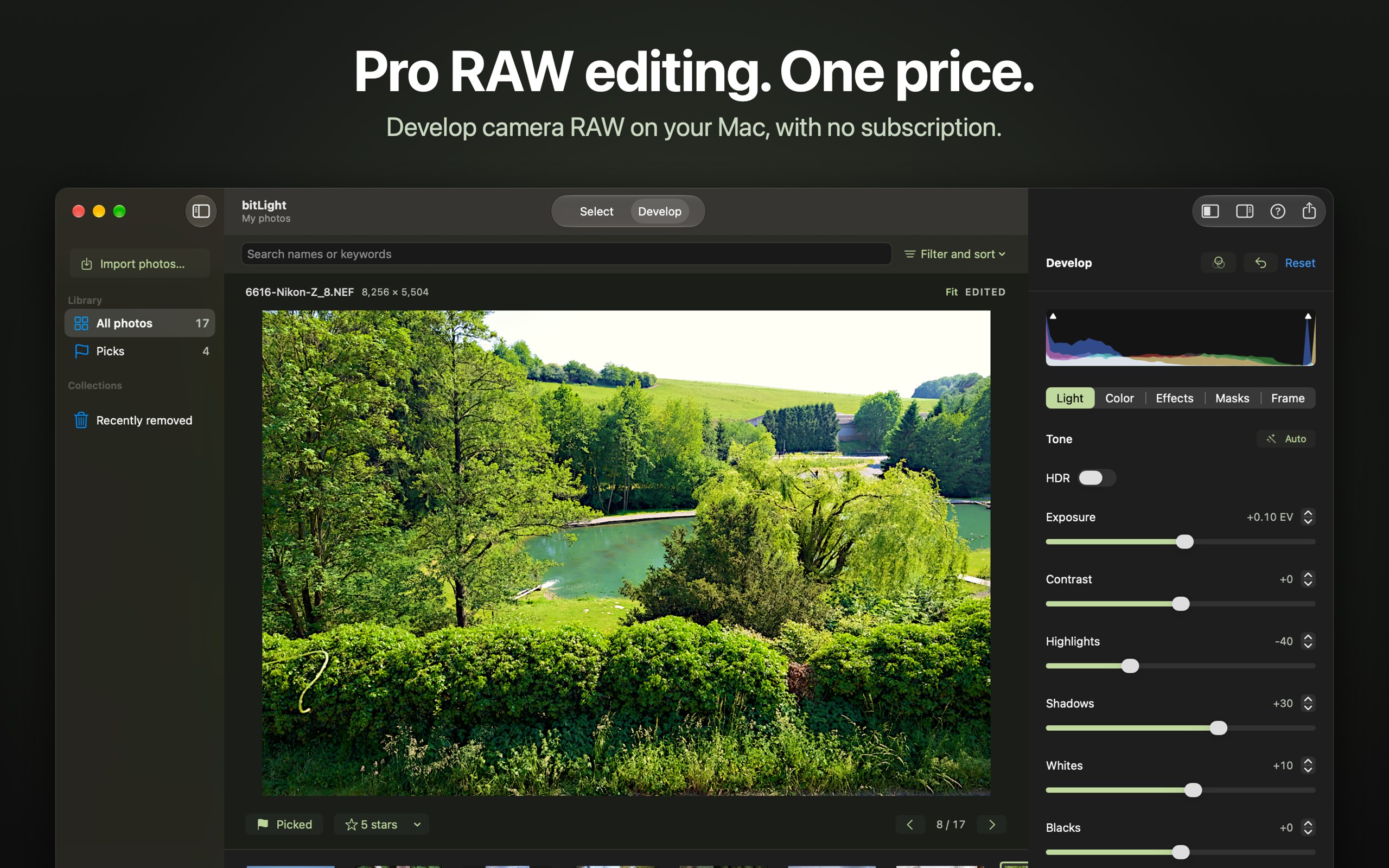
From a shoot to your keepers
- Choose Import Photos (⌘I) and select supported camera RAW files, JPEG, PNG, HEIC or TIFF. bitLight copies photos into your library; originals are not changed.
- Flag a pick with P, reject with X, and rate with 0–5. Use Organize for labels and keywords.
- Use Compare or Survey to choose between similar frames. Collections, folders and smart albums live in the sidebar.
Develop the photograph
Select a photo, then use the Light, Color, Detail, Masks and Frame tabs. Edits are saved as you work and can be undone. Show Original (⌘\) compares with the unedited photo; ⌘1 shows 100%.
Use Auto in Light as a starting point for exposure and tone. White balance offers As Shot, Auto and lighting presets. In Masks, use a gradient, brush or supported subject/background selection for local adjustments. Inspect the selection before relying on it.
Export a finished image
- Choose Export Photos (⇧⌘E).
- Pick a recipe: Web & email, Social, Print, HDR display or Archive. Or use Customize for format, size, color space, file naming and metadata.
- Choose a destination folder. Existing files are not overwritten; duplicate names receive a number.
Location metadata is left out unless you choose to include it. Export creates a delivery image; keep your library for editable work.
Keep a library backup
Your library is a .bitphoto package. Quit bitLight before copying it. Use File → Open Session for another library location and Save Session Copy for a backup.
Compatibility and privacy
Camera RAW support follows macOS and your camera model. Rendering can differ from other RAW editors. No panorama merge, AI noise reduction, catalog migration, cloud sync or plug-ins. Editing stays on your Mac; see privacy information.